UPDATE - AUG 2018
Page is very out of date. I now use the broker IG which is a great broker for Aussies to start stocks or forex. NinjaTrader if you have lots of cash. Need a US broker? I'm not the one to ask. Maybe Suretrader?
-----------------------
G'day,
Theres a small demand for OX help so I'll look into creating a video tutorial but for now here is an updated blog with just the main things to consider. Hope you like it as it took a while to make!!
=== 1. Why OptionsXpress? To be honest, if you day trade I would avoid OX if possible. If you're limited with options on what brokers to use then this tutorial will help. OX isn't the worst as it does work but it's not perfect by any means. I'm Australian (International Client) and limited to what brokers I can use for trading USD\Penny Stocks.
Commissions* are cheaper than most other brokers with many charging $60+ for a single trade here in Aus. OX has $15 Per trade and go's down to $10 after a few trades which is nice. Shorting is $20 I think. Trading under $1 gets very expensive.
Suretrader is recommended for international users however it's a cheap and nasty thing and OX seems to be a working alternative. MB Trader could also be an alternative as well as Robinhood once they release it to us.
*For some reason Aussies get charged a lot AND we have to pay more due to currency conversion. This makes learning trading with Penny Stocks difficult. Try adding $25000 US with conversion rates to avoid PDT!! Ouch.
=== 2. The Good
Orders go through pretty well. No complaints.
Virtual Trader works great alongside Streaming Charts. Great way to learn by paper trading.
Rarely has OX not been able to open the chart I'm after.
OX fee's are ok compared to many other brokers (for Aussies).
It is possible to change colours for layout but not very user friendly.
The actual website has a lot of tools and help info to play with.
Phone App available.
=== 3. The Not So Good
Broker for (wait for it...) options and overall long term trades seem great. Not so great for day-traders but usable.
Hard to learn. I've had many questions about how to use OX as it's platform is designed really badly. Once you know where stuff is it's easy but even then...
Clunky software. It's slow so get everything ready 15min before you start. Slow to open charts, add resistance lines, text etc. Seriously feels behind other broker software systems.
Support is ok via email but overall they suck. Don't bother calling them unless it's a basic question. They don't even know how to use their own software properly and lie. Pretty sure their support is run by monkeys.
Cant shortsell shares under $5. This is ACTUALLY under $6. To be honest unless you're shorting around $10+ I wouldn't bother.
Customising your layout and saving it doesn't work for everything. Forcing trend lines to be one colour for example doesn't seem to work. A real pain when you get dark blue on a black background. Overall the Settings can be a real pain to get right.
Streaming XTEND - This is the tool for 2nd level, watchlists, position view, etc. Shows a lot of info. Unfortunately it's the worst part of OX. It's slow, very clunky, crashes and worst of all it's a forced window inside a window which you can't size or position freely. Many users seem to have issues with this thing if they even know it exists in the first place. I'll go over this later.
Not a streamlined system as I've seen with other brokers - 3 monitors is best for OX. Don't recommend laptop users or single screens. My double screen has issues with all the data I need on screen. Charts take up a lot of space as there doesn't seem to be a way to reduce all the icon sizes.
2nd Level window is limited and hidden to nearly anyone I talk to about it. It's also buggy and can freeze up.
=== 4. Setting up for Trading (Watchlists and Charts)
Get your watchlist ready - If it doesn't pop up after logging into the website go to the menu QUOTES then Watchlists. Be sure to make it 'default' with the tick box.
Open your chart software ('Step 5' below has the best way to open them):
Charts are called STREAMING CHARTS found under menu\QUOTES. Once the chart is on screen press the button FULL SCREEN. You don't want the chart built into the webpage, this can just cause headaches. You can also now go to another menu on the site if need be (I keep mine on Watchlists). This is important because if you use the webpage itself to view your chart then press any link on the page (any!) you will loose it. You need a separate 'streaming' chart so you don't loose it.

Create Multiple Charts - Now you have your 'full screen' chart open do the following: Right click on chart area, bottom of drop-down select "clone chart". Do this as often as you want.*
*Be aware 'cloned' charts are literally clones. If you close the parent chart the 'clone' will ALSO close. Stupid but fact.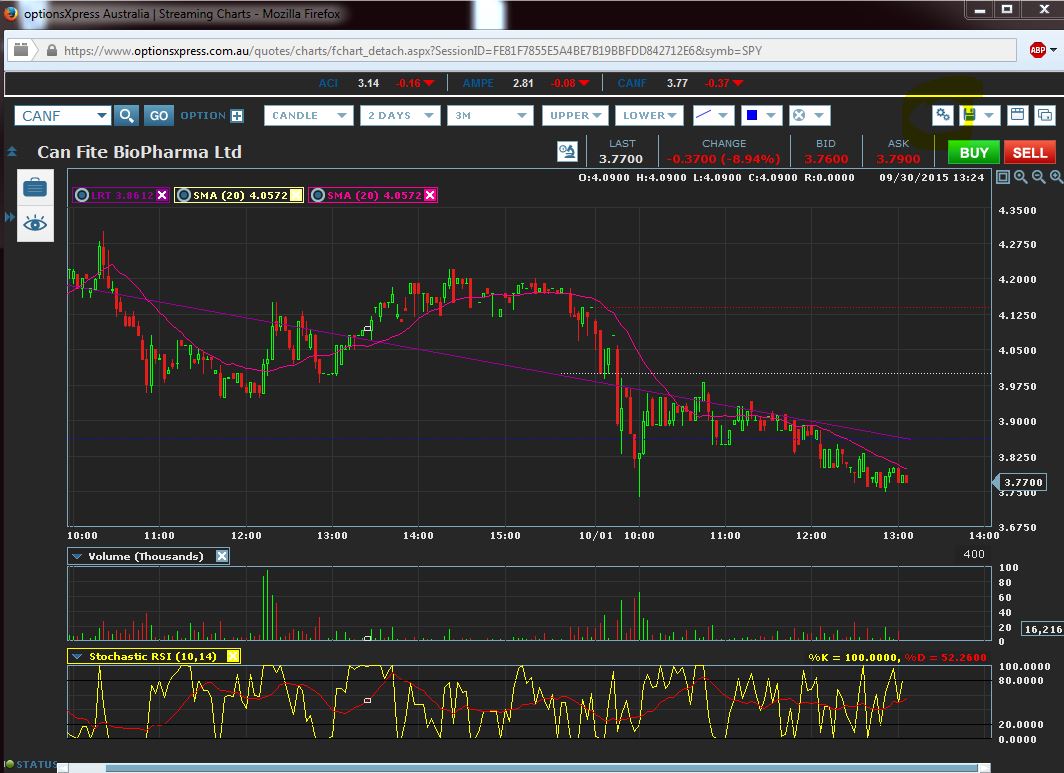
Now you should have a Watchlist created and charts on your screen. Next is to open the charts so you can use them and see your 2nd level screen.
I highly recommend going to the settings button top right of Chart and changing things to your tastes.
=== 5. Setting up 2nd Level and having the Watchlist as viewable.
Go back to your main OX webpage. At the very bottom you should have a weird little window with shiny numbers and text. On the right of this are some links (play with these. You can also open Streaming Charts here under "MORE"). Press STREAMING XTEND. This is your 2nd and final main window for trading. 
Once XTEND is open you should have a WATCHLIST window and TRADE TICKET window. This is where you play with buttons. Have fun!
Watchlist - Under the tab on the top right chose the Watchlist you want to view. There is a Settings window above to modify it. Clicking on a ticker will open a QUOTE DETAIL window if you care to use it. I don't as it just gets in the way.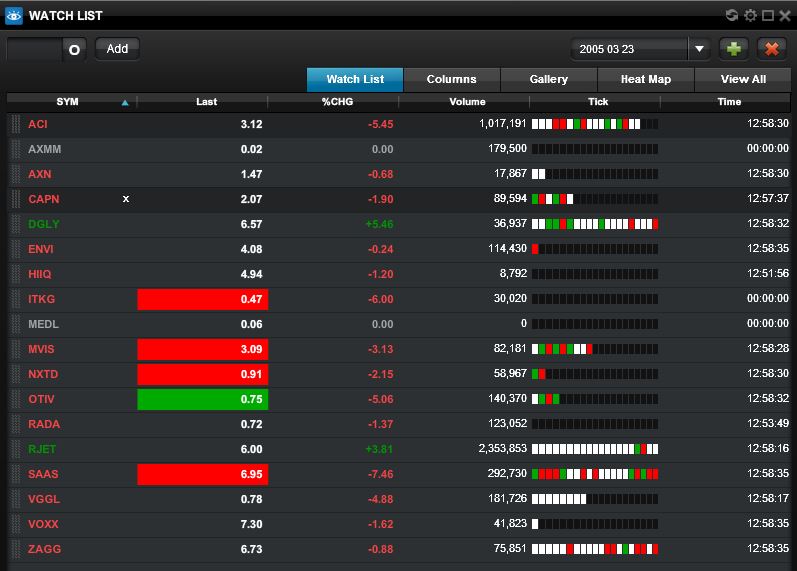
TRADE TICKET (important!!!) - Top left of this window is the ticker and a drop box with "Put" inside. Change the drop box to "Stocks". Now you need to expand this window: There are 4 tabs below this window. "Regional BBO" is the 2nd level and already activated. Look to the far right and click on the blue triangle. This will expand it but you may not notice anything. There is now a slider - Move the slider to show the 2nd level window. DONE!
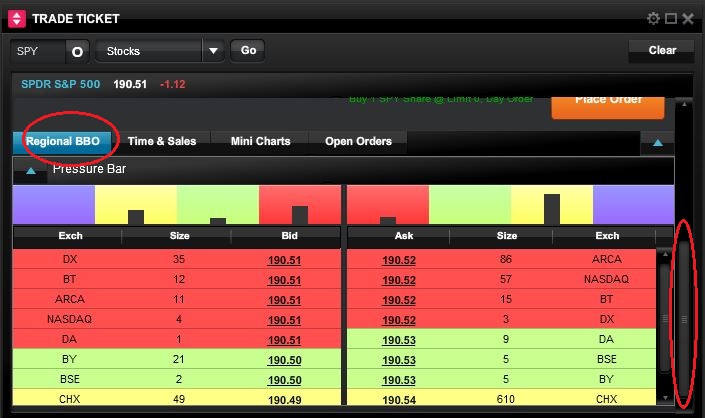
Note** I find if you change the ticker while the button "Regional BBO" is highlighed blue the window with freeze. If you find this happens and you want to change ticker click the button, the blue will vanish and now change the ticker. Now re-click the button and exapand the window again. Basically a turn off\on work around.
I highly recommend going to the Settings and changing things up to your tastes.
END
OX needs some major upgrades to keep up with the streamlined software other brokers have. Once your charts are setup OX it runs fairly well if not a little slow. Space on screen feels very limited though.
The XTEND software is just terrible and a big reason I want to leave (as well as shorting restrictions and costs under $1 per share). Any questions feel free to add below or email: mtsharky@hotmail.com - replies may take a day or 2.

am learning option now. it taking forever for me to understand
Let me know if this tut helped. I'd like to make a video which would be very helpful.
Join now or log in to leave a comment